
Connect Nestrr to your media server.
You bring the servers. Nestrr brings discovery, requests and playback together. Here is what to have ready before your first sign-in.
A Seerr server connected to Plex or Jellyfin, or a compatible Jellyseerr server connected to Jellyfin. You also need an account with permission to use it. Nestrr does not create these servers, provide an account or include films and series.
Get your Seerr address and account
Ask your server administrator for the complete Seerr address and the sign-in method to use. For example,
https://requests.example.comis an illustrative server address, not a Nestrr service. Keep any path or port provided by your administrator.Open that address in your device’s browser first. If it does not load there, check the address and your network or contact your administrator before trying the app. Public server addresses must use HTTPS. A private server may require your home network or your own VPN.
Choose the matching sign-in method
In Nestrr, open sign-in and enter the Seerr address. Choose the account method your administrator uses.
- Plex: your Seerr instance must be configured with Plex. Nestrr opens Plex authorization in your browser. Sign in there and return to the app. Nestrr does not receive your Plex password.
- Jellyfin: use your Jellyfin account when your Seerr or compatible Jellyseerr installation is configured for it.
- Seerr: use the local account supplied by your administrator.
An account that works on one server is not automatically authorized on another. Your administrator controls access and permissions.
Connect the media library
After signing in, follow the app’s prompt to connect the Plex or Jellyfin server that matches your Seerr catalogue. With a Jellyfin sign-in, Nestrr can reuse those credentials for the matching library. With Plex, select an accessible matching server after browser authorization.
If you can browse and request but cannot watch, check that the media library is linked, that the title is available and that your account has playback access.
Browse, request and watch
Open a title to see whether it is available on your connected server. Request missing titles through Seerr; approval and availability depend on your administrator. Start playback when the media is available and your account has access.
Trakt is optional. You can use My List without it; linking Trakt adds synced lists, favourites and personalised recommendations.
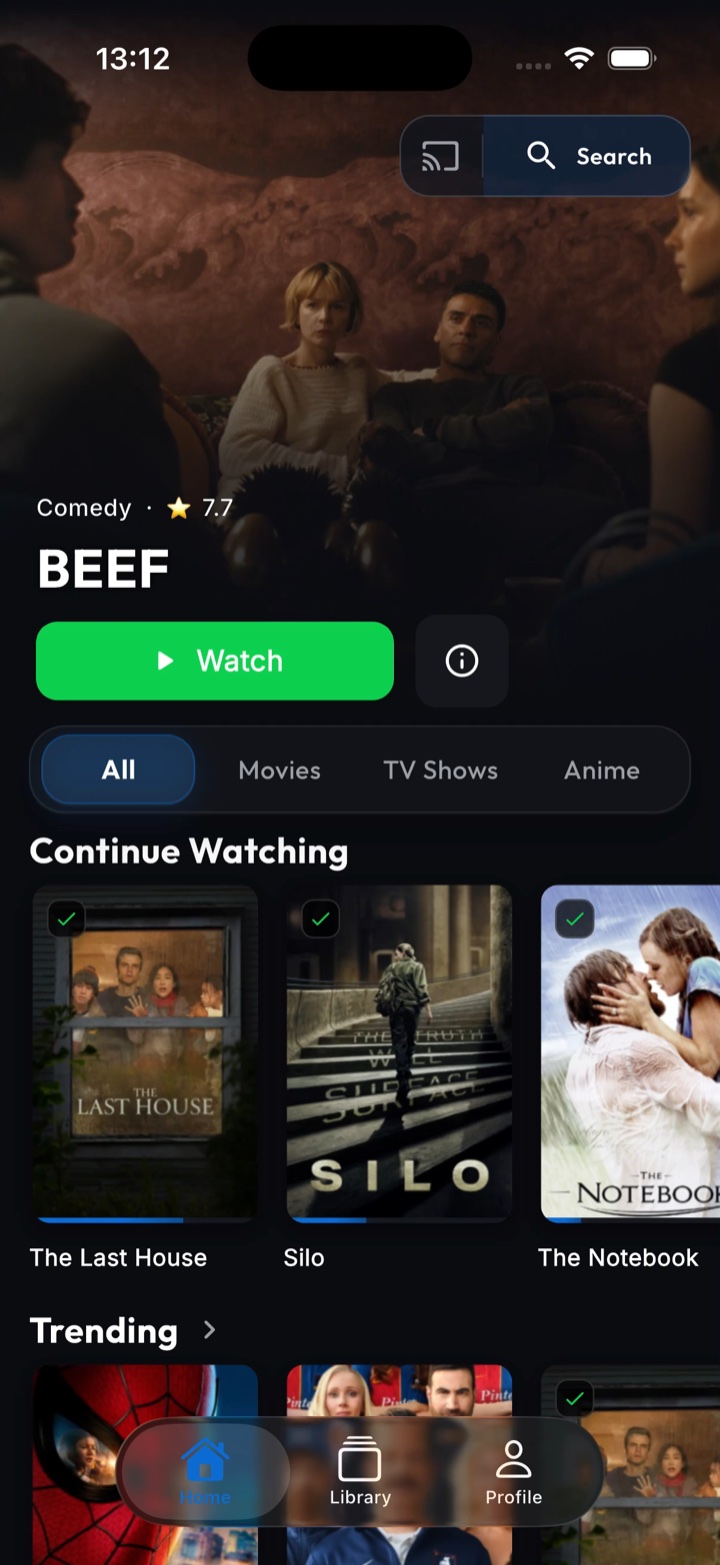
The connected home screen on iPhone. Available titles depend on your own server.
If something does not work
- Cannot reach the server: check the same address in your device’s browser, including any port or path. Confirm that the server is online and that your network can reach it.
- Sign-in is rejected: verify the selected account method and ask your administrator to confirm access. Plex sign-in requires a Plex-configured Seerr instance.
- A request is pending: approval and downloads are managed by your server administrator. Nestrr cannot override their rules.
- Playback is unavailable: confirm the matching library is connected, that the media is available and that your account has playback permission. Compatible external players vary by device.
If the problem is in Nestrr, contact support with your app version, device and reproduction steps. Never send passwords, access tokens, API keys or private server logs containing credentials.